
Getting Started
Open the Forge chat, send your first request, and understand what happens while Forge works.
Forge lives inside your application, so start by opening the app you want to work on in Studio.
Open the chat
Click the chat icon in the application header (the tooltip says Show chat). A resizable Axellero Forge sidebar opens on the right — drag its edge to make it wider or narrower. Studio remembers whether the panel was open and how wide it was.
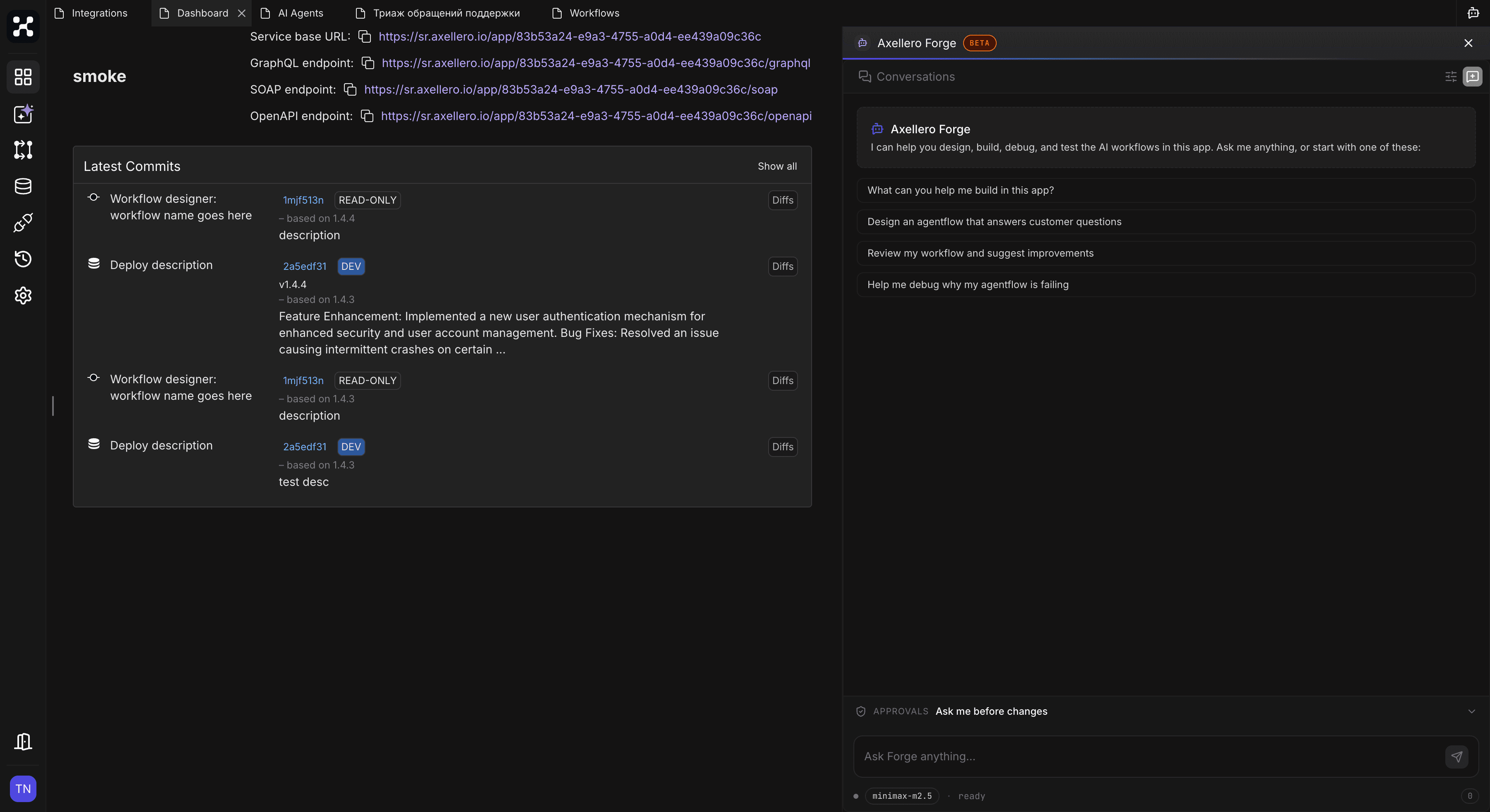
Forge is in beta. If you don't see the chat icon, the feature may not be enabled for your environment yet.
Send your first request
A fresh chat offers a few starter buttons — What can you help me build in this app?, Design an agentflow that answers customer questions — or just type into the input field ("Ask Forge anything…") and press Enter. Shift+Enter adds a line break; the field grows as you type.
Describe the outcome, not the steps. Forge will explore your application on its own and ask when something is genuinely ambiguous:
You:   I need a support agent for our tour agency. It should answer
       questions about bookings using the orders table.
Forge: I found the orders table with 8 fields. Before I build the
       agent — should it only read bookings, or also modify them?
A few starting points, depending on what you're building:
| You want to... | Try asking |
|---|---|
| Automate a process | "Build a workflow: when an order comes in, check stock and save it to the database" |
| Create an AI agent | "Create an agent that answers questions about our products" |
| Set up data storage | "Create a customers table with name, email, and phone" |
| Connect a service | "Connect our internal REST API at api.example.com" |
| Go live | "Deploy the order workflow" |
| Find a problem | "Why did the last workflow run fail?" |
What you'll see while Forge works
Forge shows its work as it goes:
- Thinking… — Forge is reading your application or deciding what to do next.
- Action rows — one line per action, with a short label and its status: running, queued, or how long it took. Expand Details to see exactly what was read or changed.
- Specialist groups — for bigger jobs Forge hands work to a specialist (for example Backbase agent for the database, Workflow agent for flows). The specialist's steps appear as a bordered group with a step counter, so you can follow along without reading every line.
- Status line — under the input: the model in use and the current state (forge is working, done, ready), plus a token counter you can click for a breakdown.
- Changes made — after Forge modifies something, a collapsed Changes made (N) summary sits at the end of the reply. Open it to see every created or updated item, grouped by area (Database, Workflow, Agentflow, Configuration). Each item is a link — click it to jump straight to that workflow, table, or setting in Studio.
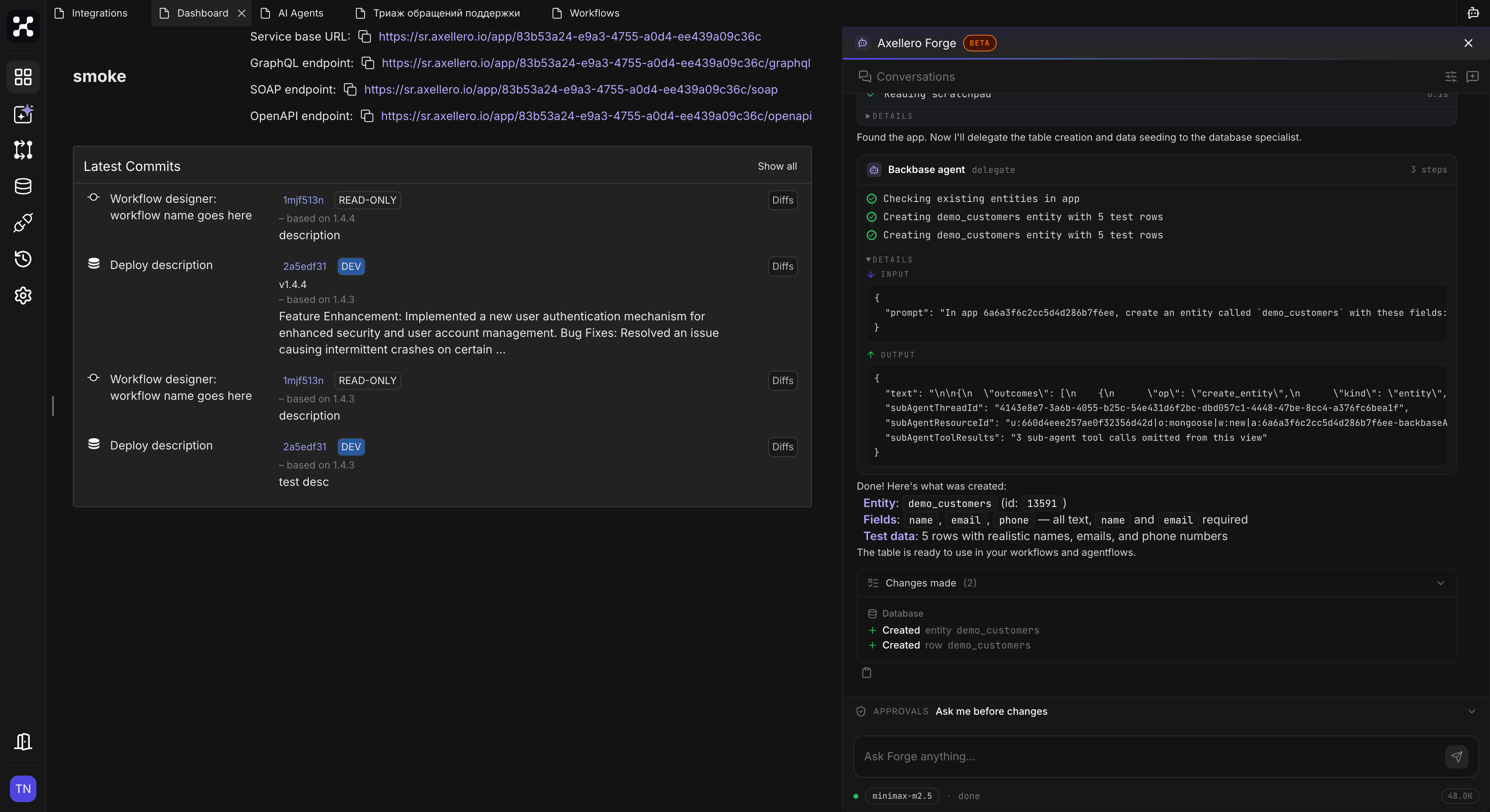
Before any of those changes happen, Forge asks for your approval — see Approvals.
The plan
For anything bigger than a one-liner, Forge writes a plan before touching your application and keeps it updated as it works. Click the list icon in the sidebar toolbar to open it: the goal, a to-do list with checkmarks, and — when relevant — decisions it made, things it learned, and blockers it's waiting on.
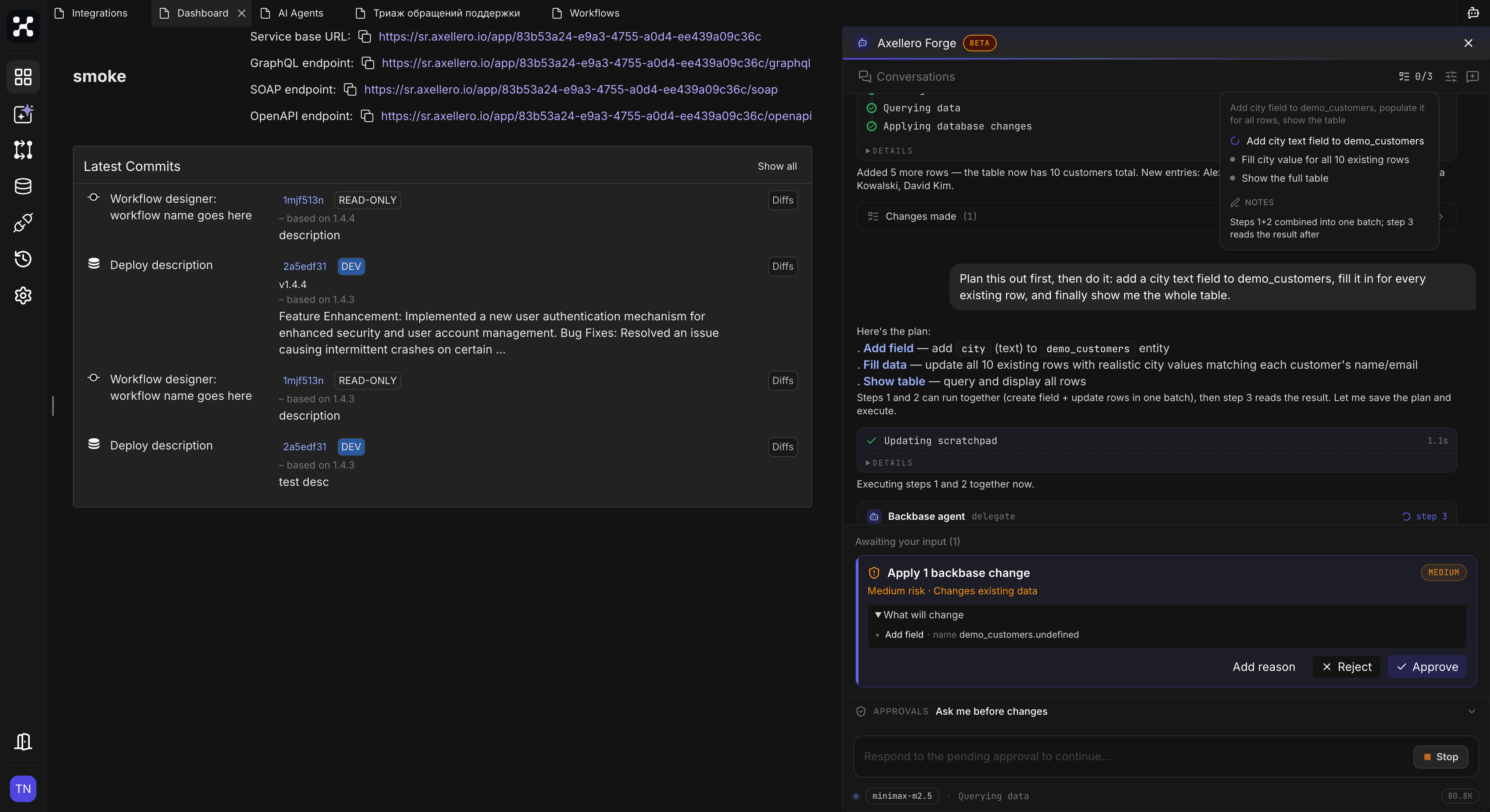
The plan is also how Forge picks up where it left off. If you press Stop mid-task and later say "continue", it resumes from the plan instead of starting over.
Stopping and reloading
While Forge is working, the send button becomes Stop — click it to halt the current run. Forge finishes the step it's on (the button reads Finishing…) and stops. Work already done stays done.
If you close or reload the page mid-task, the run keeps going: reopen the chat and you'll see it still in progress.
Conversations
Each chat is a conversation scoped to the current application. Conversations get a name automatically from your first message. Click Conversations in the sidebar toolbar to see your history — hover a conversation to rename or delete it — or click New chat to start fresh. Forge reopens your most recent conversation automatically.
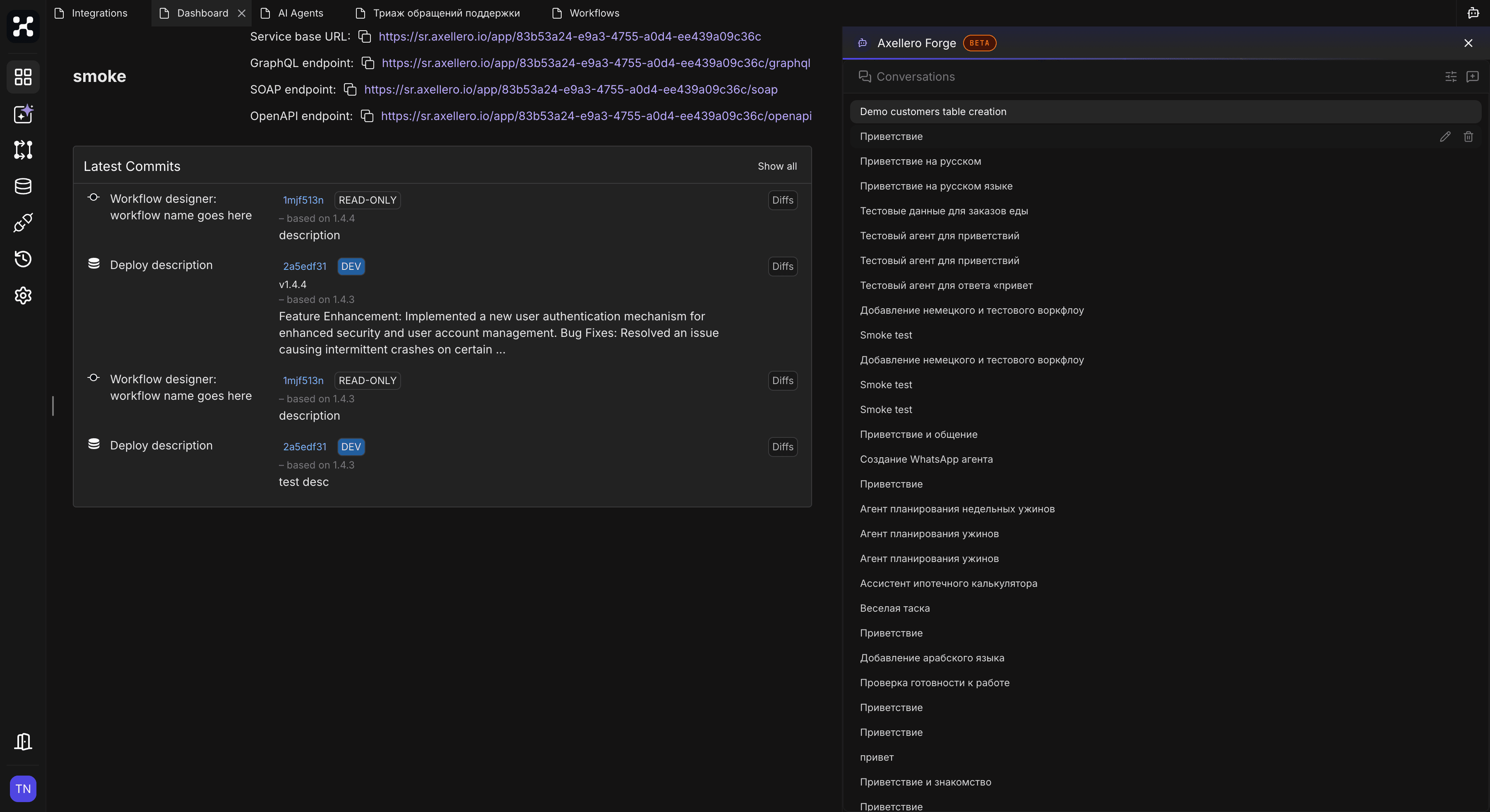
Starting a fresh conversation is a good habit when you switch to an unrelated task — Forge won't drag context from the previous topic into the new one.
Settings
Two places hold the settings:
- APPROVALS bar, right above the input — how often Forge asks for confirmation. It applies to the current conversation. Covered in Approvals.
- Chat settings (the gear icon in the toolbar) — which model Forge runs on, how creative it is, and how it talks to you. Covered in Chat Settings.