
Credentials
Manage authentication credentials for external service integrations in Axellero Studio.
The Credentials service securely stores encrypted authentication data that connectors use to access external services. It manages the full token lifecycle — including automatic OAuth 2.0 token refresh — so you never have to manually rotate expired tokens. Every connector requires a credential; they are the foundation of Axellero's integration system.
Overview
Credentials are managed in Application > Integrations > Credentials. Each credential encrypts and stores the authentication information needed to connect to an external service — API keys, OAuth tokens, or username/password pairs. When an access token expires, the Credentials service refreshes it automatically on your behalf.
┌──────────────┐    ┌──────────────┐    ┌──────────────┐
│  Credential  │    │  Connector   │    │   Trigger    │
│  (auth data) │───▶│  (action)    │───▶│   (event)    │
└──────────────┘    └──────────────┘    └──────────────┘
    Step 1              Step 2              Step 3
Credential Types
Axellero supports three credential types:
| Type | Use For | Fields | Example Services |
|---|---|---|---|
| Username/password | Username/password authentication | Login, Password | Databases, SMTP servers |
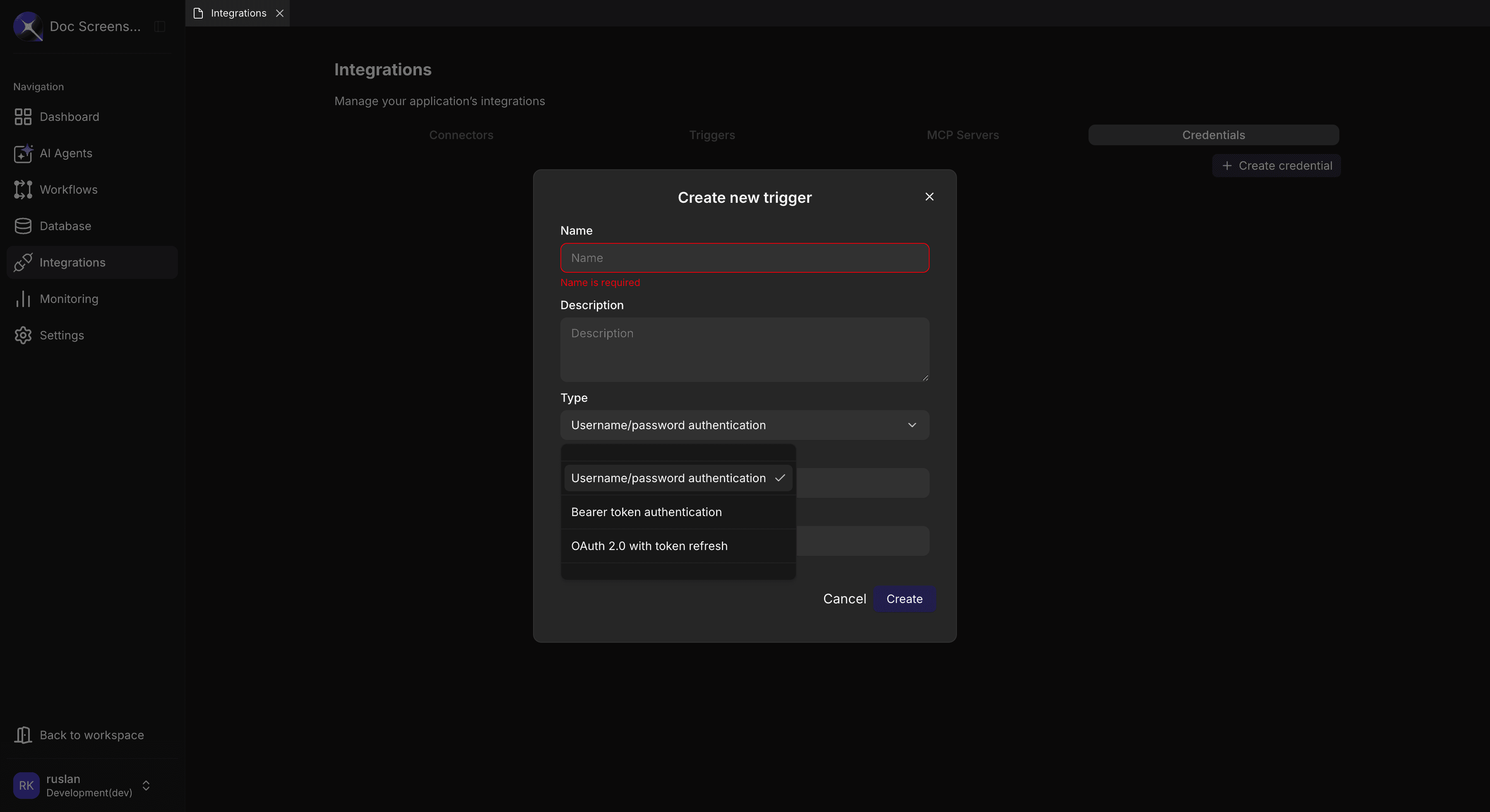
| Bearer token | API key or token-based authentication | Access Token | Telegram, Linear, custom APIs |
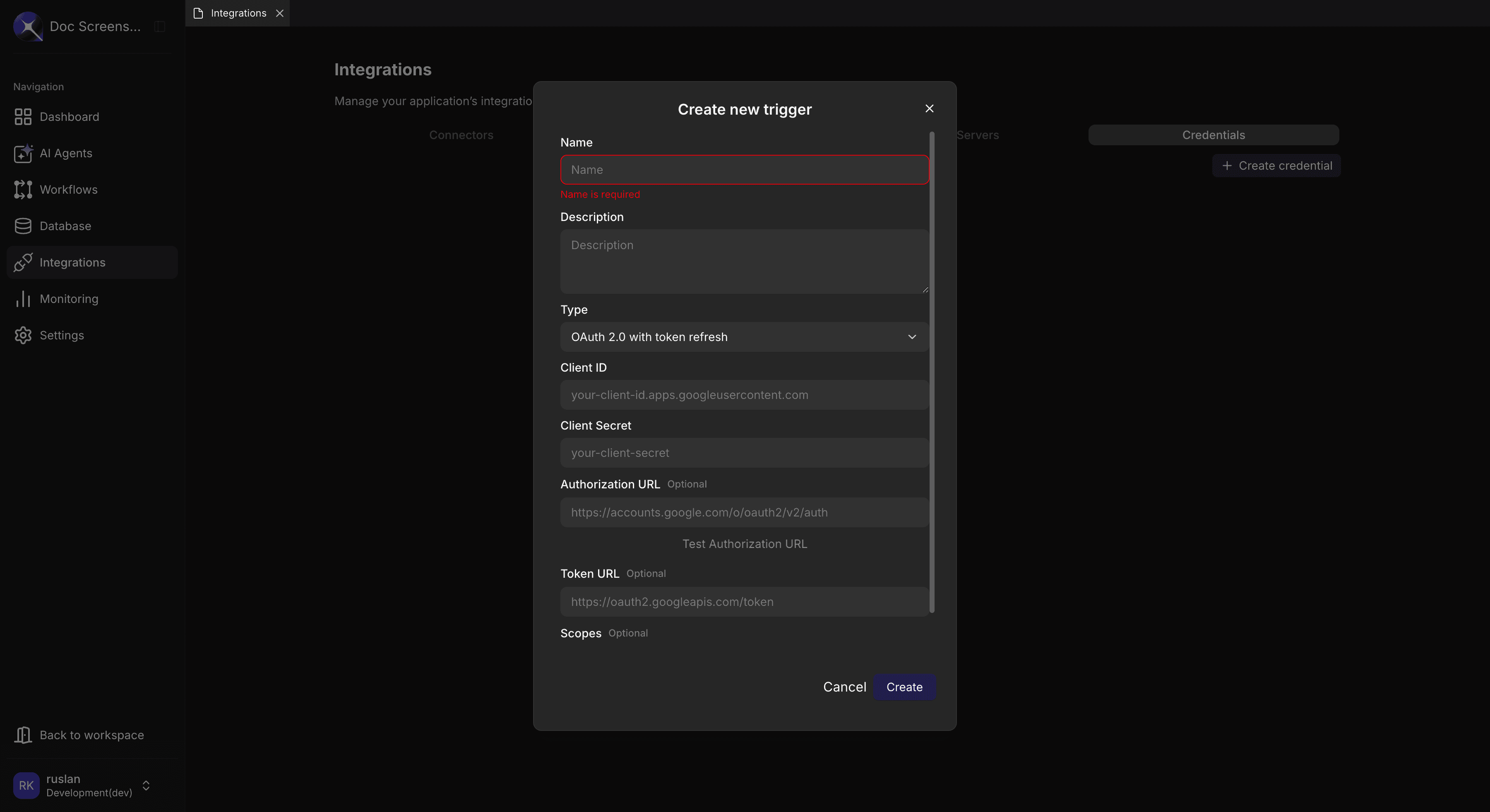
| OAuth 2.0 with token refresh | Full OAuth authorization flow with token refresh | Client ID, Client Secret, Authorization URL, Token URL, Scopes (optional) | Gmail, Google Calendar, amoCRM |
All sensitive fields (passwords, tokens, client secrets) are stored encrypted.
Creating a Credential
- Navigate to Application > Integrations > Credentials
- Click the "Create credential" button
- Enter a Name and optional Description
- Select the credential Type
- Enter the required fields for your chosen type
- Click Create
- For OAuth 2.0: click "Test Authorization URL" to complete the authorization flow
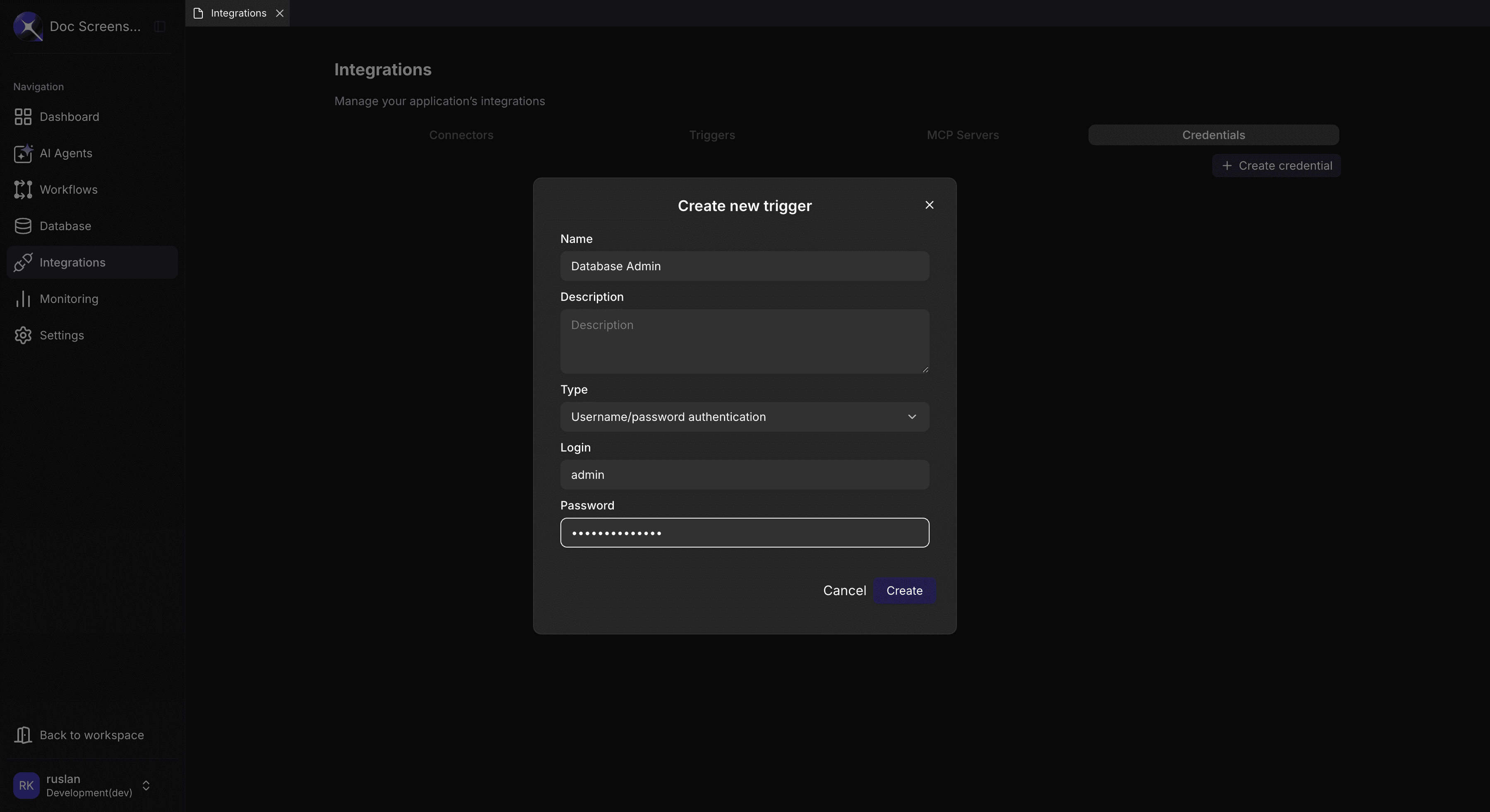
The fields change based on the selected type:
OAuth 2.0 Credential
The OAuth 2.0 form includes additional fields for the full authorization flow:
OAuth 2.0 Authorization Flow
When you click "Authorize" on an OAuth 2.0 credential, Axellero:
- Opens a popup window to the service's authorization page
- You sign in and grant the requested permissions
- The service redirects back to Axellero with an authorization code
- Axellero exchanges the code for access and refresh tokens
- Tokens are securely stored and encrypted
Re-Authorization
You may need to re-authorize a credential when:
- The refresh token has been revoked by the service
- You need to add additional permission scopes
- The service provider requires periodic re-authorization
To re-authorize, open the credential and click "Authorize" again.
Managing Credentials
Viewing Credentials
The Credentials tab displays a table with all credentials in the current application:
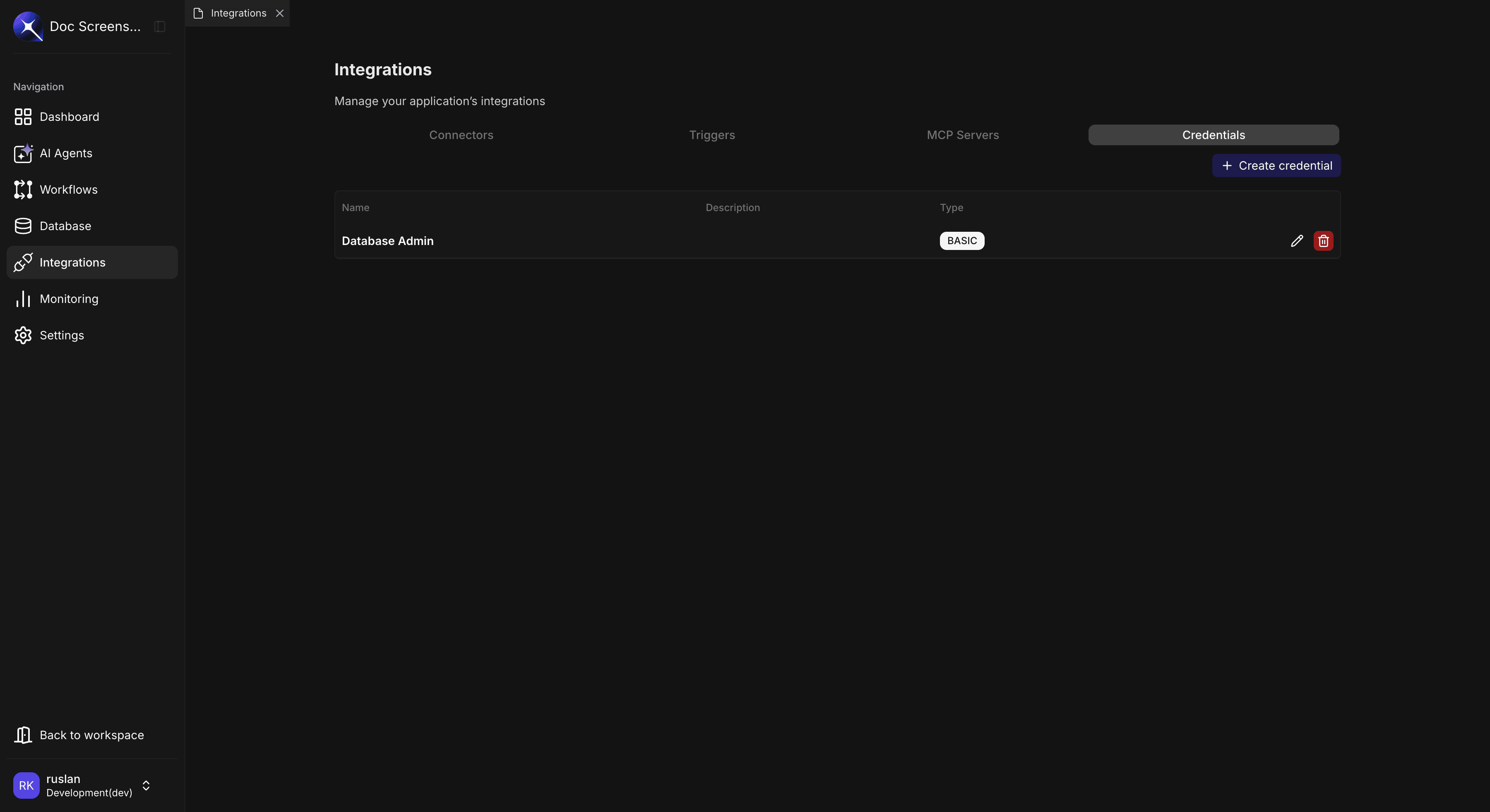
| Column | Description |
|---|---|
| Name | Credential identifier |
| Description | Optional description |
| Type | BASIC, BEARER, or OAUTH2 |
Editing a Credential
- Click the edit icon on the credential row
- Update the fields as needed (the Type cannot be changed after creation)
- Click Save
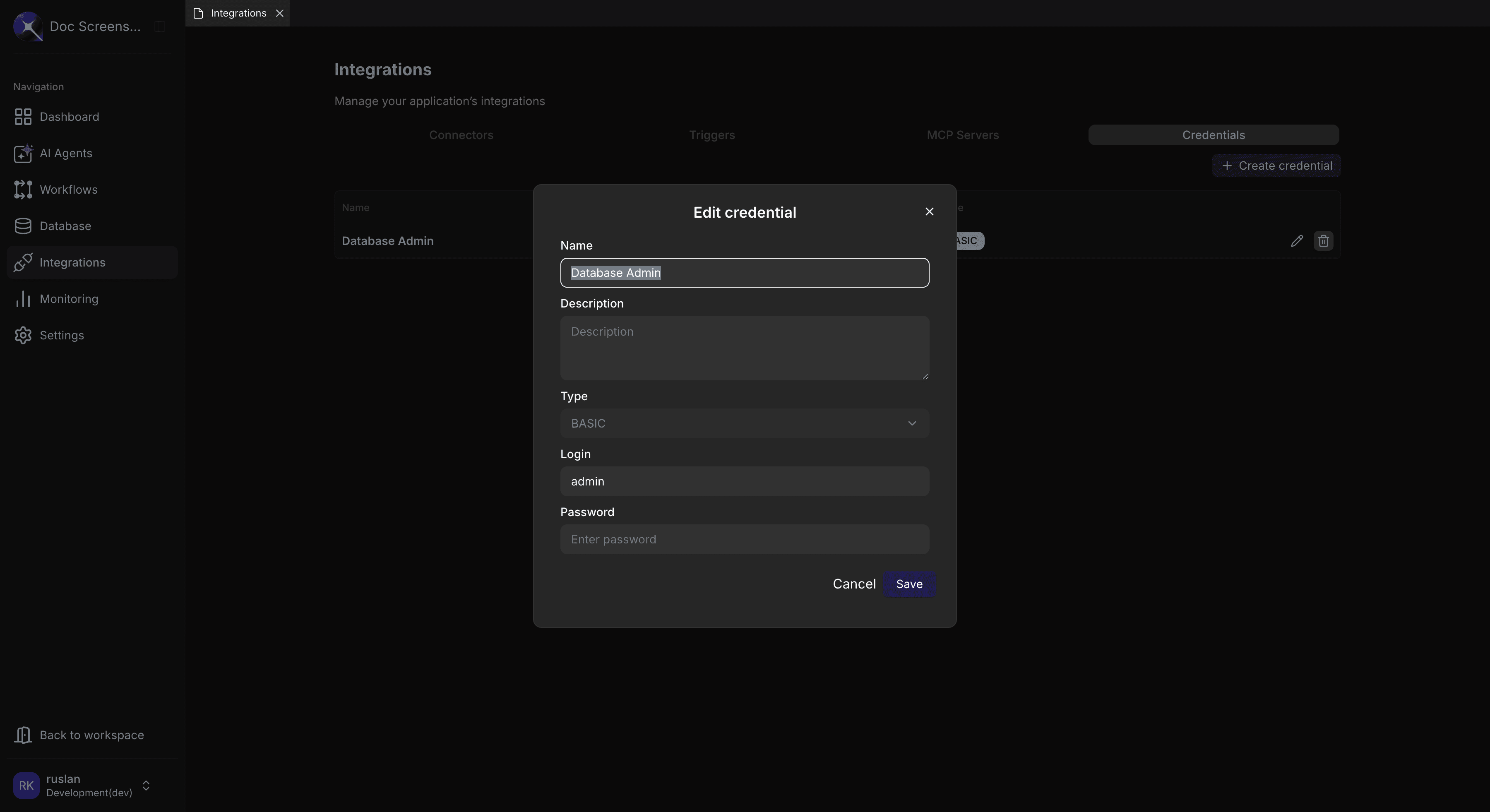
Changing credential fields (e.g., rotating an API key) may temporarily disrupt connectors that use this credential. Update during low-traffic periods when possible.
Deleting a Credential
- Click the delete icon on the credential row
- Confirm the deletion in the confirmation dialog
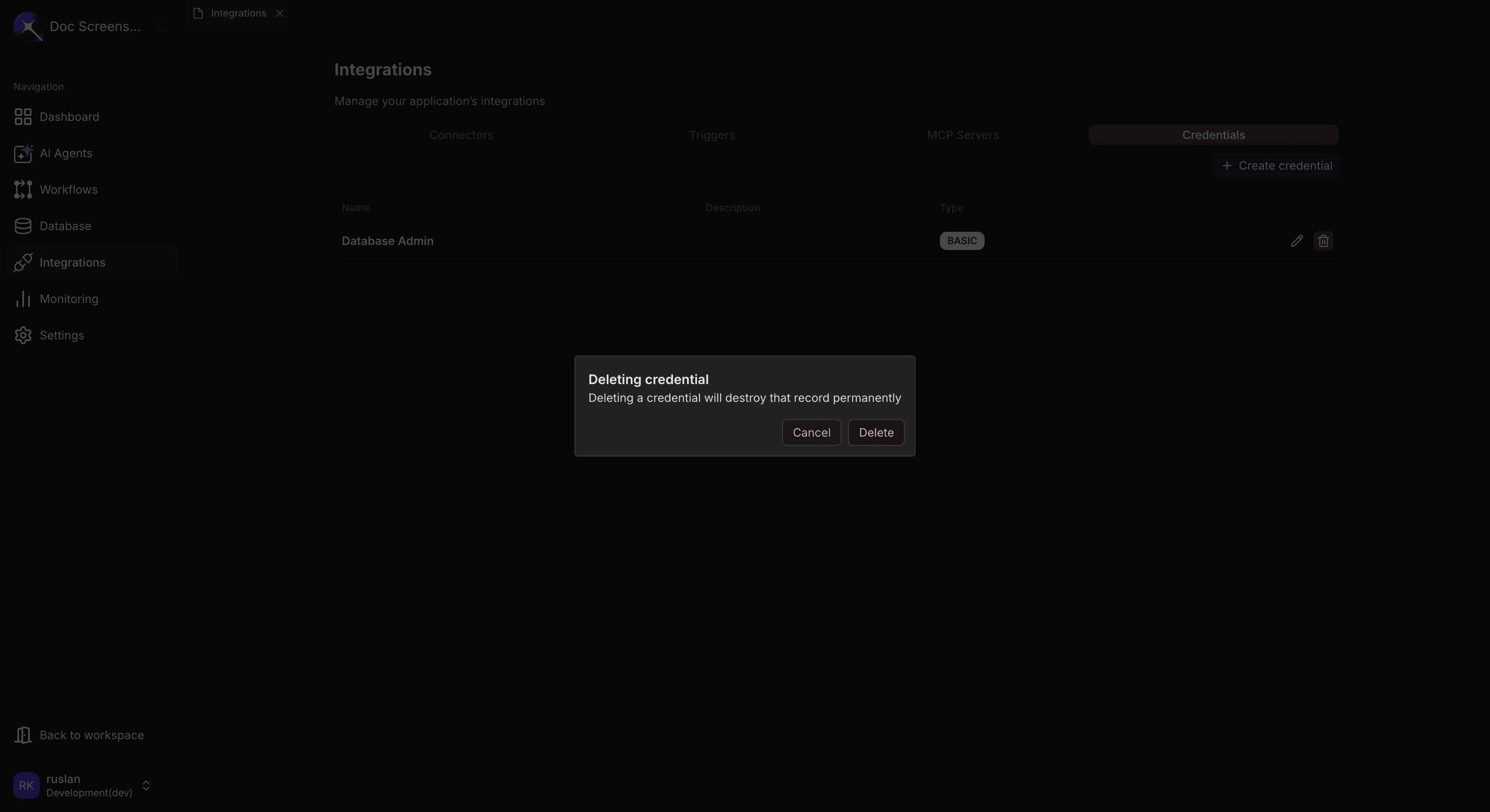
Deleting a credential will break any connectors that depend on it. Before deleting, update or remove dependent connectors first.
Integration-Specific Guides
Each integration has specific credential requirements. See the setup guides for detailed instructions:
| Service | Credential Type | Setup Guide |
|---|---|---|
| Gmail | OAuth 2.0 | Gmail Setup - Step 1 |
| Telegram | Bearer | Telegram Setup - Step 1 |
| Bearer | WhatsApp Setup - Step 1 | |
| Linear | Bearer | Linear Setup - Step 1 |
| Google Calendar | OAuth 2.0 | Google Calendar Setup - Step 1 |
| amoCRM | OAuth 2.0 | amoCRM Setup - Step 1 |
Troubleshooting
| Error | Cause | Solution |
|---|---|---|
| "Invalid credentials" | Incorrect login/password or token | Verify the values match what the service provider gave you |
| "Authorization failed" | OAuth flow did not complete | Try clicking "Authorize" again; check Client ID and Secret |
| "Token refresh failed" | Refresh token revoked or expired | Re-authorize the credential from scratch |
| "Invalid redirect URI" | Callback URL mismatch | Ensure the redirect URI in the service matches Axellero's callback URL |
| "Insufficient scopes" | Missing permissions | Add the required scopes and re-authorize |
| "Connection refused" | Service unreachable | Check the Authorization URL and Token URL are correct |
Related Guides
- Connectors — Create connections to external services using your credentials
- Triggers — Configure real-time event handling from connected services
- MCP Servers — Add custom tools via the Model Context Protocol