
Triggers
Real-time event handling from connected external services in Axellero Studio.
Triggers are the events side of integrations — they listen for real-time events from external services and start AgentFlows or Workflows automatically. When a subscribed event occurs — such as a new email, a chat message, or a CRM update — the trigger delivers the event data to your AgentFlow or Workflow.
Overview
Triggers are managed in Application > Integrations > Triggers. Each trigger is linked to a connector and subscribes to specific events from that service.
┌──────────────┐    ┌───────────┐    ┌──────────────┐
│   External   │    │  Trigger  │    │  AgentFlow / │
│   Service    │───▶│  (Event)  │───▶│   Workflow   │
└──────────────┘    └───────────┘    └──────────────┘
  Event occurs       Receives &        Processes
                     delivers event     event data
Trigger Lifecycle
Triggers follow a state-based lifecycle:
| State | Description | Indicator |
|---|---|---|
| Pending | Trigger created but not yet subscribed | Amber |
| Subscribed | Actively listening for events | Green |
| Failed | Subscription attempt failed | Red |
| Unsubscribed | Manually unsubscribed or deactivated | Grey |
Prerequisites
Before creating a trigger, you need:
- A credential for the external service — see Credentials Guide
- A connector with trigger support — see Connectors Guide
Not all connectors support triggers. Only connectors for services that provide webhook or push notification capabilities will appear in the trigger connector selection.
Creating a Trigger
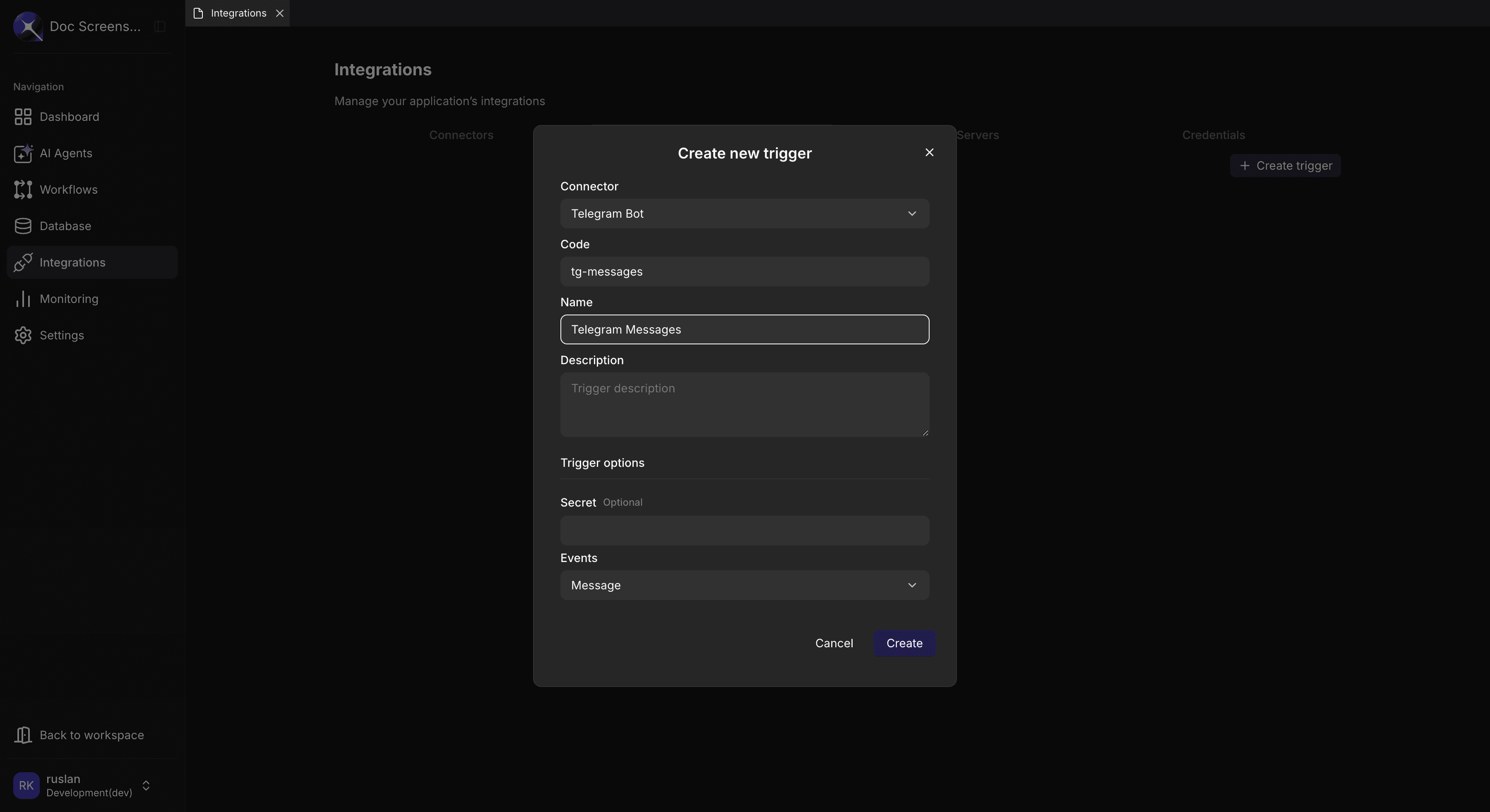
- Navigate to Application > Integrations > Triggers
- Click the "Create trigger" button
- Select the Connector you want to receive events from
- Enter a Code (unique identifier) and Name for the trigger
- Optionally add a Description
- Under Trigger options, select the events to listen for and optionally set a secret for webhook signature verification
- Click Create
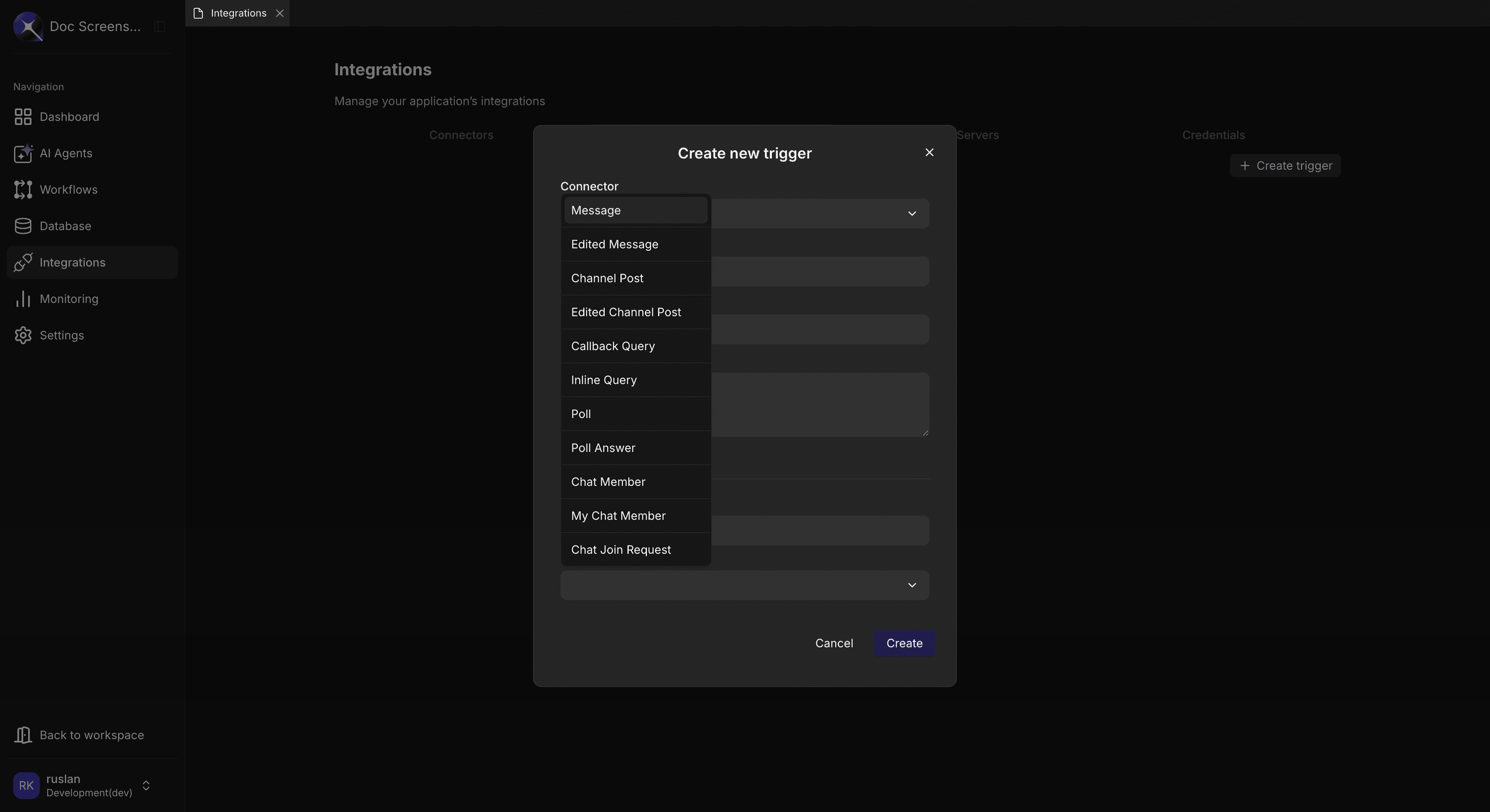
The available events depend on the selected connector type. For example, a Telegram connector offers events like Message, Edited Message, Channel Post, Callback Query, and more:
Configuration Fields
| Field | Required | Description |
|---|---|---|
| Connector | Yes | The connector to receive events from |
| Code | Yes | Unique identifier used to reference the trigger in AgentFlows and Workflows |
| Name | Yes | Human-readable name for the trigger |
| Description | No | Optional notes about this trigger |
| secret | No | Signing secret for webhook signature verification |
| events | Yes | Event types to listen for (service-specific) |
Subscribing and Unsubscribing
After creating a trigger, it starts in PENDING status. Click the subscribe icon in the trigger's row actions to activate it. Axellero will generate a unique webhook URL, register it with the external service (when supported), and begin listening for events. The status changes to SUBSCRIBED and a webhook URL becomes available.
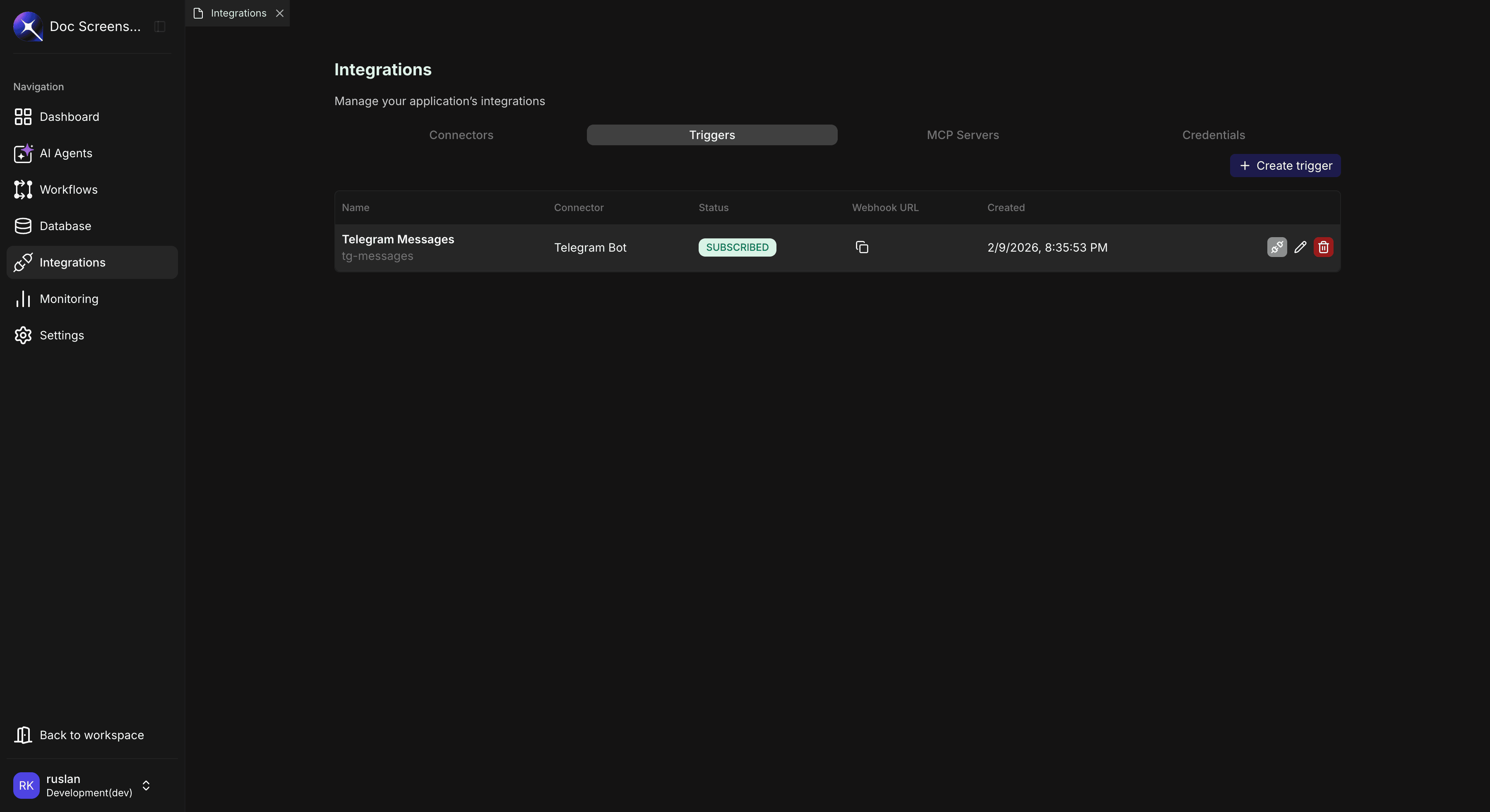
You can also subscribe from the edit dialog by clicking the "Subscribe" button next to the status indicator.
For most services, Axellero handles webhook registration automatically. Some services (like Linear) require you to register the webhook URL manually — copy it from the Webhook URL column and paste it into the service's webhook settings.
Click the subscribe icon again to unsubscribe — this stops receiving events and deregisters the webhook. The status returns to PENDING.
Managing Triggers
Viewing Triggers
The Triggers tab displays a table with all triggers in the current application:
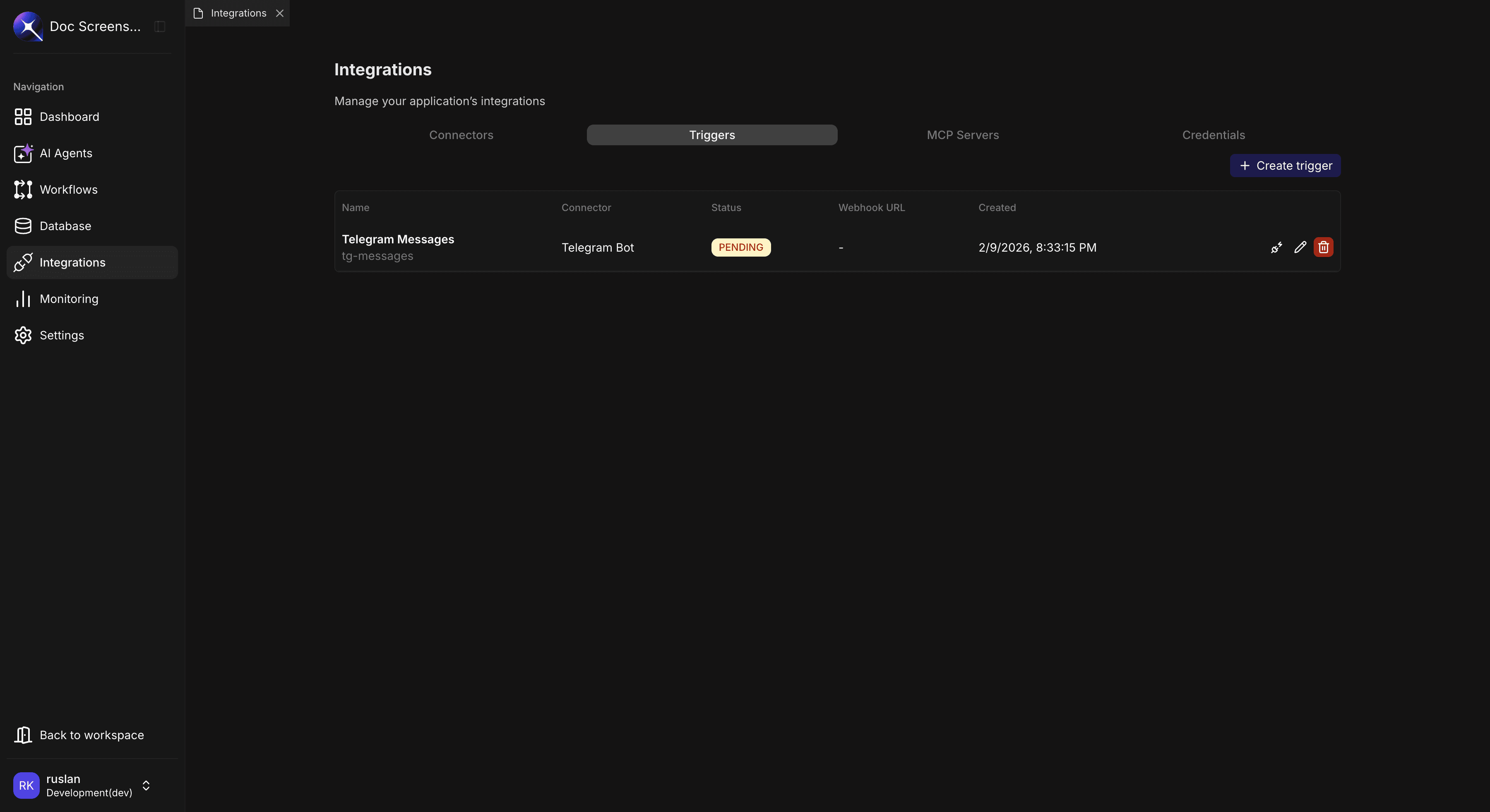
| Column | Description |
|---|---|
| Name | Trigger name and code |
| Connector | Associated connector name |
| Status | PENDING, SUBSCRIBED, or FAILED |
| Webhook URL | The URL receiving events (click the copy icon to copy) |
| Created | When the trigger was created |
Each row has three action buttons: subscribe/unsubscribe, edit, and delete.
Editing a Trigger
- Click the edit icon on the trigger row
- Update the configuration options as needed
- Click Update
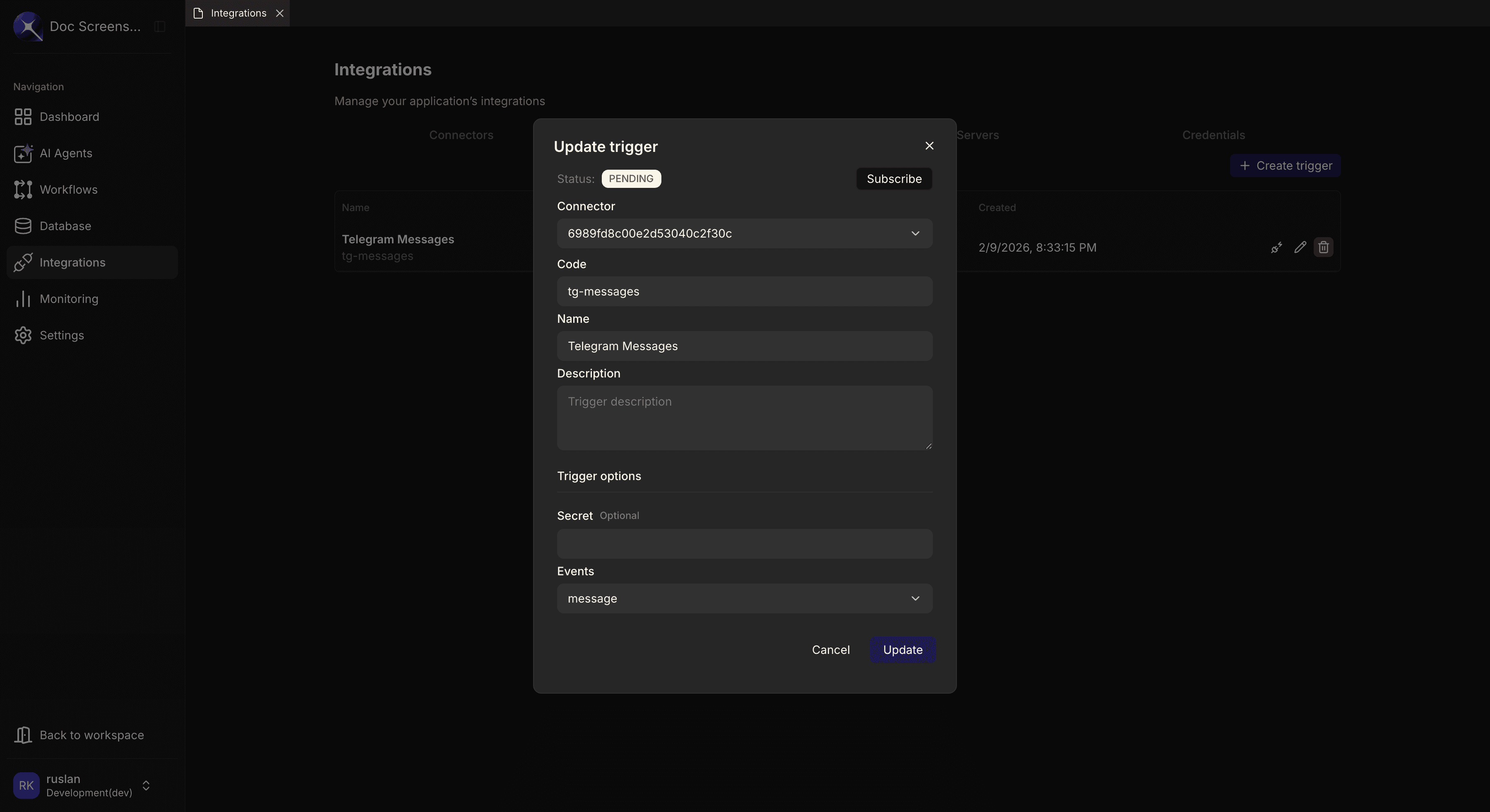
The edit dialog also shows the current Status and a Subscribe/Unsubscribe button to manage the trigger lifecycle directly.
Changing trigger options may require re-subscribing for the changes to take effect. Unsubscribe and subscribe again after updating.
Deleting a Trigger
- Click the delete icon on the trigger row
- Confirm the deletion in the confirmation dialog
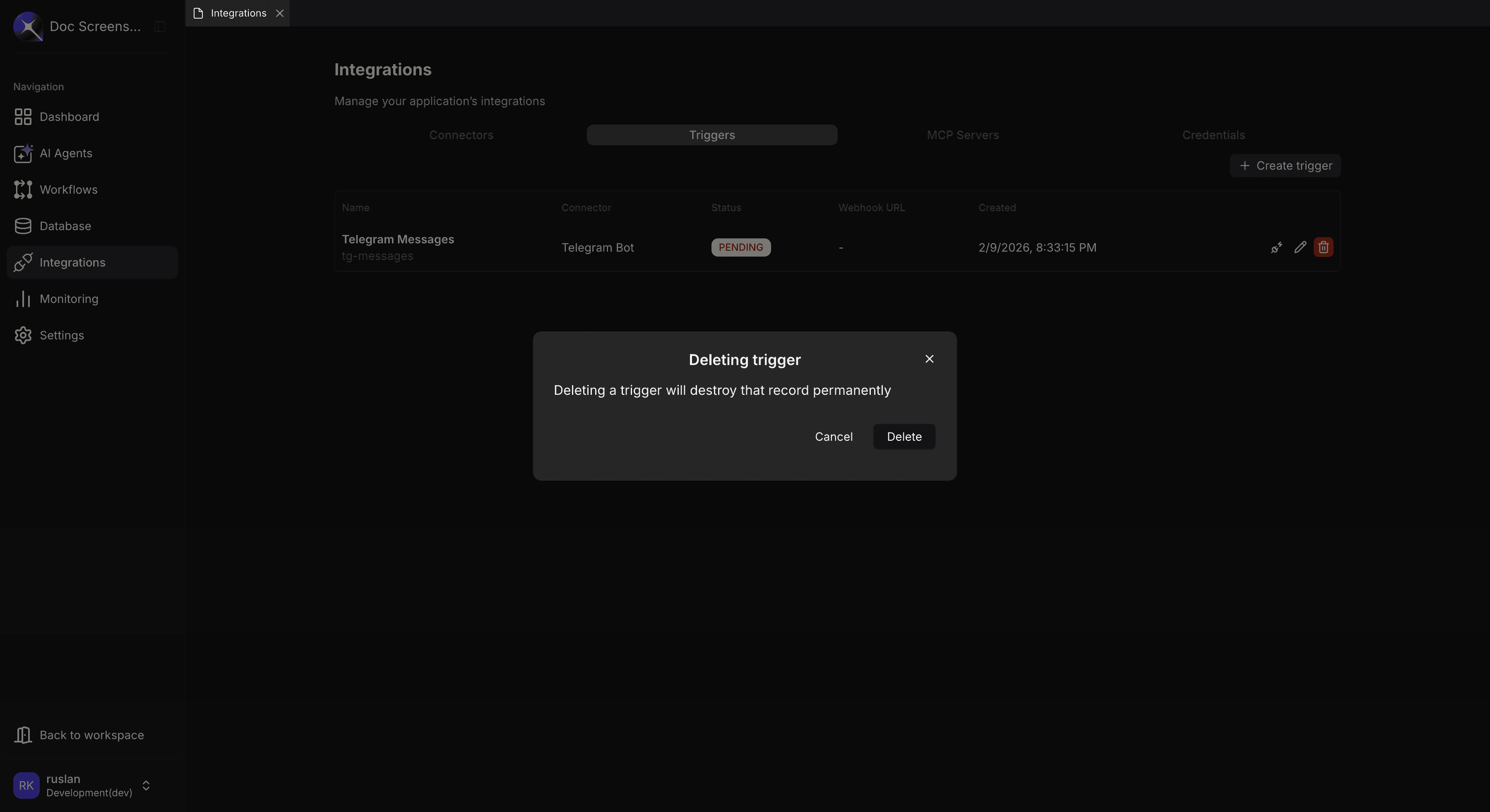
Deleting a trigger will unsubscribe from the external service and remove the webhook. Any AgentFlows or Workflows using this trigger will stop receiving events.
Using Triggers in AgentFlows and Workflows
Triggers serve as the starting node in an AgentFlow or Workflow. When an event is received, the trigger passes the event data to the execution context.
Adding a Trigger
- Open AgentFlow Builder or Workflow Builder
- Find your trigger in the Triggers section of the node palette
- Drag the trigger onto the canvas as the starting node
- Connect subsequent nodes to process the event data
Accessing Trigger Data
Trigger event data is available in the execution context:
{{ctx.nodes.<trigger_code>.outputs.data}}For example, if your trigger code is telegram_trigger:
{{ctx.nodes.telegram_trigger.outputs.data.message.text}}The data structure depends on the external service. See each service's setup guide for payload examples.
Troubleshooting
| Error | Cause | Solution |
|---|---|---|
| Subscription failed | Invalid connector credentials | Verify the credential and connector are configured correctly |
| Webhook registration failed | Service rejected the webhook URL | Check the service's webhook requirements |
| No events received | Wrong event type selected | Verify the event types match what you're testing |
| No events received | Webhook not registered on service side | For services requiring manual setup (e.g., Linear), register the webhook URL manually |
| Signature verification failed | Secret mismatch | Ensure the signing secret matches between Axellero and the external service |
| Stuck in pending | Network or configuration issue | Check connector status and try re-subscribing |
| Events arriving but AgentFlow/Workflow not starting | Trigger not wired as starting node | Ensure the trigger is the starting node and the AgentFlow or Workflow is published |
| Duplicate events | Service retries on slow response | Use workflow logic to deduplicate based on event IDs |
Related Guides
- Credentials — Set up authentication for external services
- Connectors — Connect to external services before creating triggers
- MCP Servers — Add custom tools via the Model Context Protocol