
Connectors
Connect to databases, APIs, and external services using pre-built connectors.
Connectors are the actions side of integrations — they let your agents and workflows perform actions on external services: send data, execute operations, or query information.
Connectors require credentials for authentication. Set up your credentials first before creating a connector.
Overview
Connectors are managed in Application > Integrations > Connectors. Each connector links a credential to an external service, giving your agents and workflows runtime access.
┌──────────────┐    ┌──────────────┐    ┌──────────────┐
│  AgentFlow / │    │  Connector   │    │   External   │
│   Workflow   │───▶│  (Action)    │───▶│   Service    │
└──────────────┘    └──────────────┘    └──────────────┘
  Agent decides       Sends request       Database, API,
  to act              via connector        or service
Connector Categories
Each connector belongs to a node category. See Integration Nodes for detailed per-node documentation.
| Category | Nodes | Description |
|---|---|---|
| Databases | PostgreSQL, Oracle | Query, read, and write to relational databases |
| APIs & Protocols | REST, GraphQL, SOAP, OpenAPI | Call external APIs using standard protocols |
| Email & Messaging | Gmail, Telegram, WhatsApp, SMTP | Send messages, manage inboxes, bot integration |
| CRM & Sales | amoCRM, Bitrix24 | Customer management, sales pipeline automation |
| Productivity | Linear, Google Calendar | Issue tracking, scheduling, project management |
| Documents | Carbone, Digital Sign, Outline | Document generation, signatures, knowledge base |
| File Transfer | SFTP, FTP/FTPS | Secure file upload, download, and transfer |
| Message Queues | Kafka, RabbitMQ | Event streaming, async message processing |
| Government | eGov Gateway | Kazakhstan SmartBridge integration |
| Weather | OpenWeather | Weather data and forecasting |
| AI & LLM | LLM providers | AI model integration and inference |
Creating a Connector
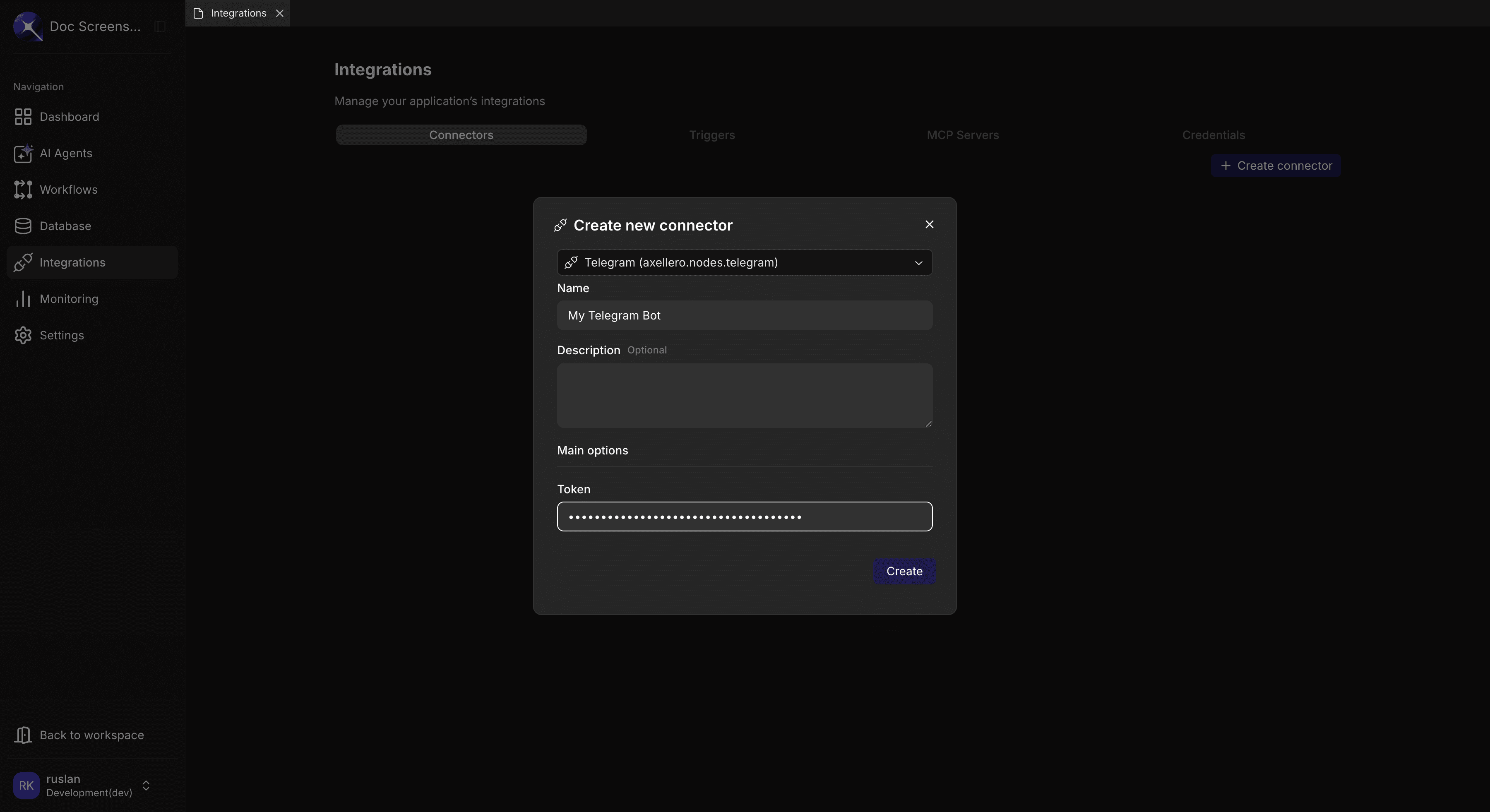
- Navigate to Application > Integrations > Connectors
- Click the "Create connector" button
- Select the connector type (e.g., PostgreSQL, REST API, Telegram)
- Enter a name and optional description
- Enter connection details (token, host, URL — depends on connector type)
- Click Create
Configuration Fields
| Field | Required | Description |
|---|---|---|
| Connector Type | Yes | The external service type to connect to |
| Name | Yes | Descriptive identifier (e.g., "My Telegram Bot") |
| Description | No | Optional notes about this connector |
The remaining fields under Main options depend on the selected connector type. For example:
- Telegram — Token
- PostgreSQL — Host, Port, User, Password, Schema, Database
- REST API — URL, Headers
- GraphQL — URL, Headers, Insecure Skip Verify
Managing Connectors
Viewing Connectors
The Connectors tab displays a table with all connectors in the current application:
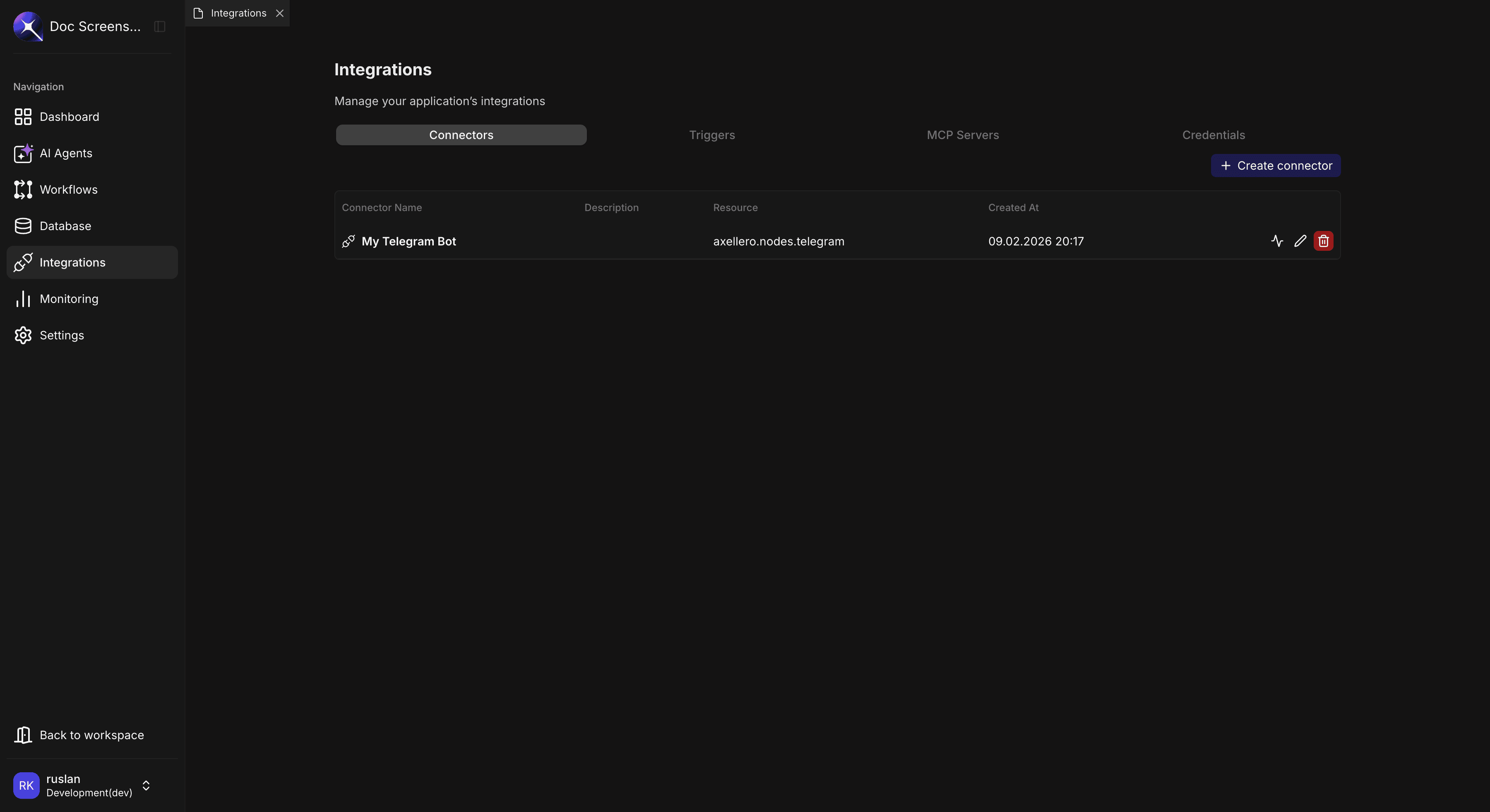
| Column | Description |
|---|---|
| Connector Name | Connector identifier |
| Description | Optional description |
| Resource | Connector type (e.g., axellero.nodes.telegram) |
| Created At | When the connector was created |
Editing a Connector
- Click the edit icon on the connector row
- Update the fields as needed
- Click Update
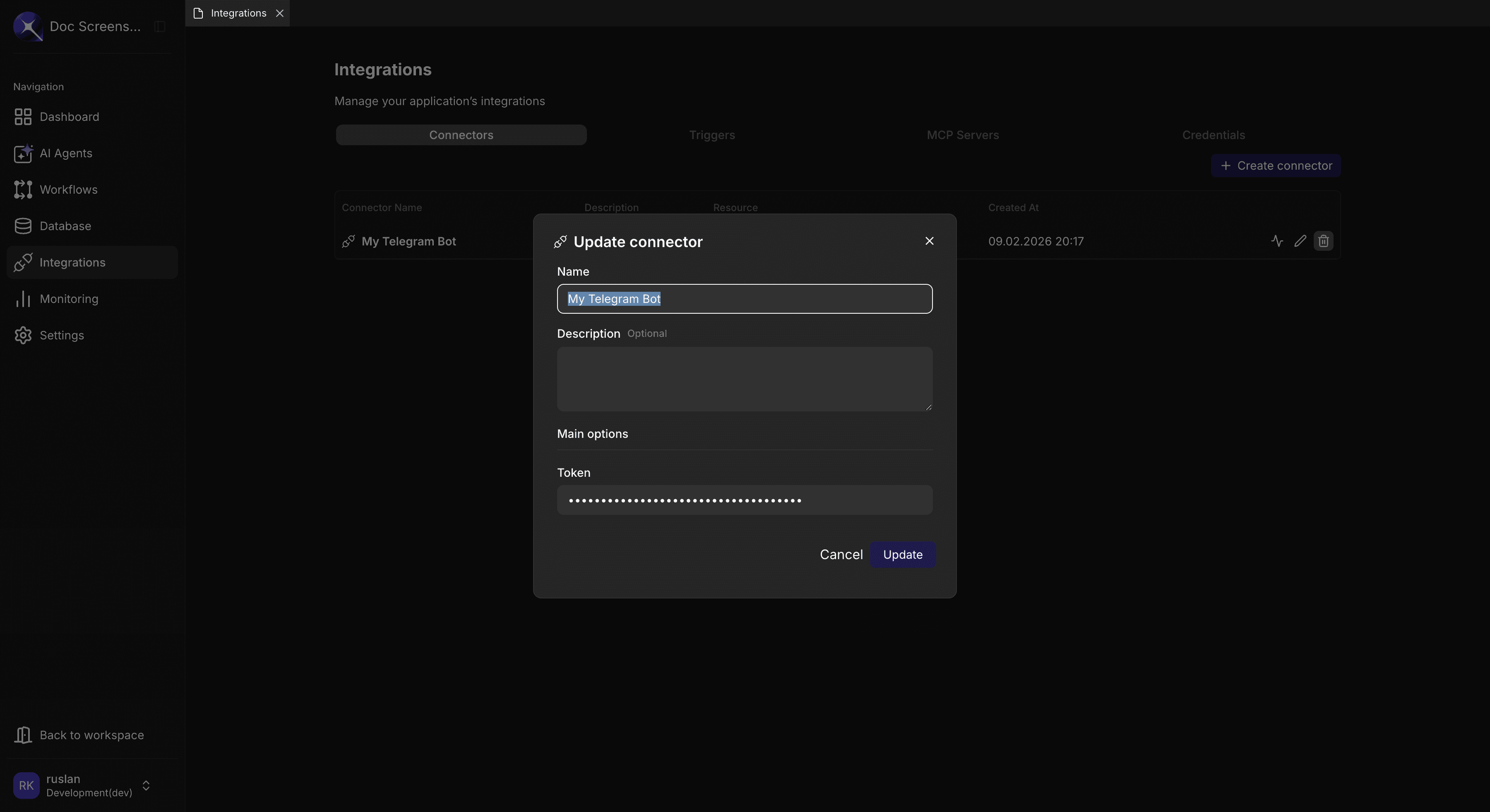
Changing connection details may temporarily disrupt agents and workflows that use this connector. Update during low-traffic periods when possible.
Deleting a Connector
- Click the delete icon on the connector row
- Confirm the deletion in the confirmation dialog
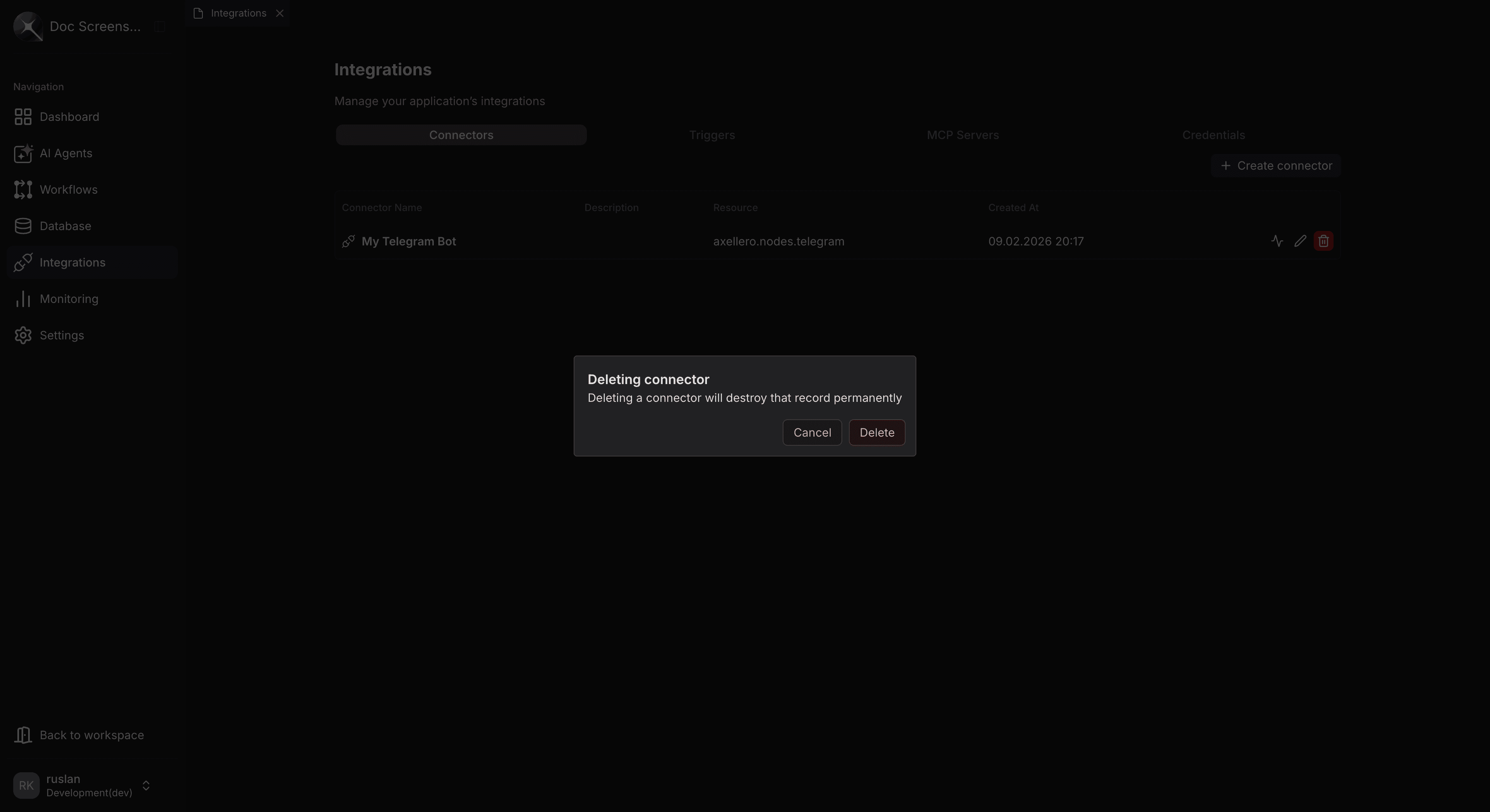
Deleting a connector will break any triggers and workflow nodes that depend on it. Remove dependent triggers first, then delete the connector.
Troubleshooting
| Error | Cause | Solution |
|---|---|---|
| "Connection refused" | Host unreachable or wrong port | Verify host, port, and network access |
| "Authentication failed" | Invalid credential | Check the linked credential is correct and not expired |
| "Connection timed out" | Network or firewall issue | Verify network access; increase connection timeout if needed |
| "SSL certificate error" | Untrusted or expired certificate | Update the certificate, or disable SSL verification for dev environments |
| "Too many connections" | Connection pool exhausted | Reduce concurrent usage or increase pool limits on the service side |
| "Schema discovery failed" | Insufficient permissions | Grant the required read permissions on the target database |
Related Guides
- Credentials — Set up authentication before creating connectors
- Triggers — Configure real-time event handling for your connectors
- MCP Servers — Connect to MCP-compatible tool servers