
Setting Up Integrations
Connect external services with Forge — connectors, credentials, and triggers, set up and tested in one conversation. Secrets never go through the chat.
Connecting a service in Studio involves three pieces: a credential (how to authenticate), a connector (what to call), and often a trigger (when to react). Forge knows this chain and walks it in order. The only thing it can't do for you is know your secret — and it has a safe way to ask for it.
Connecting a service
You:   Connect our Telegram bot so workflows can send messages.
Forge: I need the bot token. Please enter it in the card below —
       it goes straight to the platform, not into this chat.
A credential card appears above the input with a masked field. Paste the token there and click Save credential. Then Forge creates the connector on that credential and tests the connection — so you find out immediately whether the setup works, not later when a workflow fails at midnight.
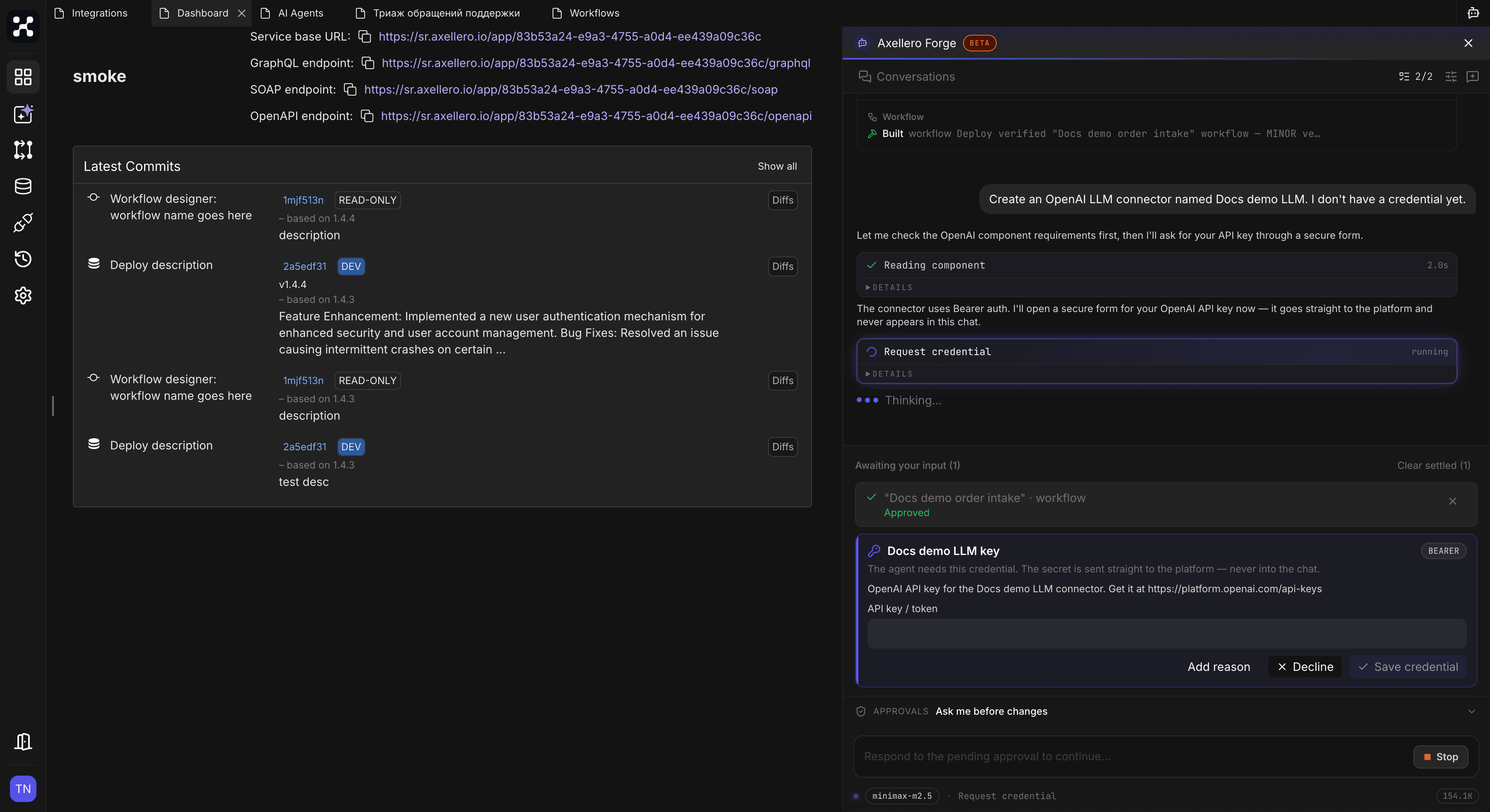
If the credential already exists, just name it — "connect the bot on 'Telegram Bot Prod'" — and Forge skips straight to the connector.
Secrets never go through the chat
This matters, so it gets its own section. Anything you type into the chat becomes part of the conversation history and is visible to the model. A secret should never be there.
That's why Forge asks for keys and tokens through the credential card instead: the value goes from your browser to the platform, and Forge learns only that the credential now exists. The same card is used to rotate a secret — "the Slack token changed, update it" — so replacing a key is safe too.
Don't paste secrets into the chat
If you paste a key as a message anyway, it stays in your conversation history. Wait for the card instead, or create the credential by hand in Application › Integrations › Credentials and refer to it by name.
LLM providers for your agents
An AI agent needs an LLM connector — OpenAI, Anthropic, Google, or another provider — with your API key. Forge sets these up the same way: credential card for the key, then the connector, then a test. One LLM connector can serve all the agents in the application.
Connecting your own API
For internal or custom services, Forge can read the API's actual structure:
You:   Connect our inventory service — REST, at
       https://api.internal.example.com, key auth.
Forge: Connector created and tested. I inspected the API schema:
       it exposes /items, /stock, and /reservations. Which of these
       should the order workflow use for the stock check?
The same works for GraphQL endpoints — Forge introspects the schema and builds correct queries instead of guessing field names.
Forge inspects a service's schema through its connector, so the connector comes first. If you ask about an API that isn't connected yet, Forge will offer to create the connector before exploring it.
Reacting to events: triggers
To make things happen automatically, ask for the behavior:
You:   When a customer messages the Telegram bot, run the support
       workflow.
Forge creates the trigger and subscribes the workflow to it. Note the approval text for this one: subscribing starts firing on real events. From the moment you approve, actual messages will start the workflow — this is the step where your integration goes live, so it always asks first.
Scheduled runs are just another trigger: "run the cleanup workflow every night at 2am".
Application settings
Small pieces of configuration your flows share — a support email, a default currency, a feature flag — are constants. Forge creates and updates them on request: "add a constant SUPPORT_EMAIL = help@example.com and use it in the notification step".
Changing and removing integrations
Deleting a credential or connector through Forge is a high risk approval, and the card will warn you: any workflow that uses it will break.
If a connection misbehaves, start with a check: "test the CRM connector" — no approval needed, and Forge reports what the service answered. If the answer is an authentication error, Forge asks you to rotate the secret rather than retrying with the old one.